Welcome to this ASP.NET tutorial. According to Microsoft, "ASP.NET is a technology for building powerful, dynamic Web applications and is part of the .NET Framework". This tutorial will teach you ASP.NET from scratch, and no knowledge of any kind of server side scripting is required. Basic HTML and CSS knowledge is preferable. Having worked with Classic ASP or PHP won't give you much of an advantage, since ASP.NET is a whole new way of doing things.
.NET is language independent, which means you can use any .NET supported language to make .NET applications. The most common languages for writing ASP.NET applications are C# and VB.NET. While VB.NET is directly based VB (Visual Basic), C# was introduced together with the .NET framework, and is therefore a some what new language. Some people call C# "the .NET language", but according to Microsoft, you can do all the same things, no matter if you're using C# or VB.NET. The 2 languages are not that different, and if you have used one of them, you will have no problems at all learning the other. In this tutorial we will use C#.
One of the main differences between ASP.NET and Classic ASP/PHP is the fact that ASP.NET is compiled, while Classic ASP is always interpreted. PHP can be compiled by using commercial products, but usually it's interpreted as well.
This tutorial will use the free Visual Web Developer 2005 IDE from Microsoft. Despite what some people think, ASP.NET can be used without an IDE. It would be perfectly possible to write ASP.NET code in Notepad, and use the commandline compiler included with the .NET framework. Some people might actually prefer this "back to basics" way of doing things, but I believe that ASP.NET is best programmed with a decent IDE. You can use an IDE from another vendor, and you will still be able to follow most of this tutorial. We will use VWD 2005 since it's free, quick to install and easy to use. Besides, using a good IDE will make a lot of things faster in the long run.
Now, you can read more about VWD 2005 on this page:
http://msdn.microsoft.com/vstudio/express/vwd/ and download it from this page:
Download
. The initial download is very small, because the installation is based on which components you already have and which will have to be downloaded. Just execute the file, and you will be guided through the installation. Once installed, start up the application, and proceed to the next chapter.
Friday, April 10, 2009


Thursday, April 9, 2009
How Google Interpret your query
This article describes how Google treats your search terms.
All Search Terms Count
Google returns only pages that match all your search terms.
For example a search for PR PLAN 2009 find pages containing the words “PR” and “PLAN” and “2009”.
This means Google adds implicit AND to the search query terms.
NOTE: Google sometimes returns pages that does not contains your query terms because Google returns pages in which your query terms are included in the link text to another page or place on the page.
Google also searches the metadata values set for a page (if any) with the query terms and if match found, the page is returned in search result.
Search Terms Match Exactly
Google returns pages that match your search terms exactly.
That means that Google simply matches string of characters together by putting and in between. It does not look for synonyms of words.
Stop Words
Some common words such as ‘the’, ‘a’, ‘an’, ‘on’, ‘where’, ‘this’, ‘is’, ‘when’ generally don’t add meaning to a search and are called Stop Words.
These words are omitted while performing the search.
For example if you search for ‘What to do for a student visa’, Google searches for terms ‘to’, ‘do’, ‘student’ and ‘visa’ ignoring ‘What’, ‘for’ , ‘a’.

Terms in Order
Google gives higher priority to pages that have the terms in the same order as in your query.
Consequently, you should enter search terms in the order in which you would expect to find them on the pages you're seeking. A search for [Microsoft latest technologies] gives priority to pages about Microsoft’s Latest Technologies.
Not Case-Sensitive
Google is not case-sensitive. It shows both upper- and lowercase results.
Ignoring case distinctions increases the number of results Google finds. A search for “Times Square” finds pages containing “Times Square”, “times square” or “TIMES Square”
Characters Ignored
Google ignores some punctuation and special characters, including
! ? , . ; [ ] @ / # < > .
For example Dr. Watson returns the same values as Dr Watson
Apostrophes
A term with an apostrophe doesn’t match the term without an apostrophe.
For example, ‘we’er’ matches “we’er” but not “were” and vice versa.
Quoted Phrases
To search for a phrase, a proper name, or a set of words in a specific order, put them in double quotes.
A query with terms in quotes finds pages containing the exact quoted phrase.
For example, search term “White House” finds pages containing the phrase “White House” exactly.
NOTE: If you put stop words in between double quotes, Google will search for the phrase including those stop words.
All Search Terms Count
Google returns only pages that match all your search terms.
For example a search for PR PLAN 2009 find pages containing the words “PR” and “PLAN” and “2009”.
This means Google adds implicit AND to the search query terms.
NOTE: Google sometimes returns pages that does not contains your query terms because Google returns pages in which your query terms are included in the link text to another page or place on the page.
Google also searches the metadata values set for a page (if any) with the query terms and if match found, the page is returned in search result.
Search Terms Match Exactly
Google returns pages that match your search terms exactly.
That means that Google simply matches string of characters together by putting and in between. It does not look for synonyms of words.
| If you search for … | Google won't find … |
| cheap | inexpensive |
| tv | television |
| effects | influences |
| children | kids |
Stop Words
Some common words such as ‘the’, ‘a’, ‘an’, ‘on’, ‘where’, ‘this’, ‘is’, ‘when’ generally don’t add meaning to a search and are called Stop Words.
These words are omitted while performing the search.
For example if you search for ‘What to do for a student visa’, Google searches for terms ‘to’, ‘do’, ‘student’ and ‘visa’ ignoring ‘What’, ‘for’ , ‘a’.

Terms in Order
Google gives higher priority to pages that have the terms in the same order as in your query.
Consequently, you should enter search terms in the order in which you would expect to find them on the pages you're seeking. A search for [Microsoft latest technologies] gives priority to pages about Microsoft’s Latest Technologies.
Not Case-Sensitive
Google is not case-sensitive. It shows both upper- and lowercase results.
Ignoring case distinctions increases the number of results Google finds. A search for “Times Square” finds pages containing “Times Square”, “times square” or “TIMES Square”
Characters Ignored
Google ignores some punctuation and special characters, including
! ? , . ; [ ] @ / # < > .
For example Dr. Watson returns the same values as Dr Watson
Apostrophes
A term with an apostrophe doesn’t match the term without an apostrophe.
For example, ‘we’er’ matches “we’er” but not “were” and vice versa.
Quoted Phrases
To search for a phrase, a proper name, or a set of words in a specific order, put them in double quotes.
A query with terms in quotes finds pages containing the exact quoted phrase.
For example, search term “White House” finds pages containing the phrase “White House” exactly.
NOTE: If you put stop words in between double quotes, Google will search for the phrase including those stop words.
Monday, March 23, 2009
How to use resource file in Sharepoint
Today I will tell you how to use resource file in sharepoint.
Resource file is stored in location '12/Resources' directory.
If you don't know where this '12' folder exists , then the full path is:
C:\Program Files\Common Files\Microsoft Shared\web server extensions\12
There you will see a folder named 'Rescources'.
Suppose we have a resource file named CustomResource.resx with a key/value pair as :
userName : TestUser
Now, if we need to access the value of key userName from resource file from our application, we need to do:
string srcName = SPUtility.GetLocalizedString(
"$Resources:CustomResource,userName", "CustomResource", 1033);
You can also use the above code like this also:
string srcName = SPUtility.GetLocalizedString(
"$Resources:userName", "CustomResource", 1033);
Varun Sharma
Resource file is stored in location '12/Resources' directory.
If you don't know where this '12' folder exists , then the full path is:
C:\Program Files\Common Files\Microsoft Shared\web server extensions\12
There you will see a folder named 'Rescources'.
Suppose we have a resource file named CustomResource.resx with a key/value pair as :
userName : TestUser
Now, if we need to access the value of key userName from resource file from our application, we need to do:
string srcName = SPUtility.GetLocalizedString(
"$Resources:CustomResource,userName", "CustomResource", 1033);
You can also use the above code like this also:
string srcName = SPUtility.GetLocalizedString(
"$Resources:userName", "CustomResource", 1033);
Varun Sharma
Wednesday, March 18, 2009
Sometimes, I set breakpoints and attach to the process but Visual Studio skips loading the symbols if I’m debugging a deployed assembly to the GAC and
Easy, Open Tools -> Options -> Debugging.
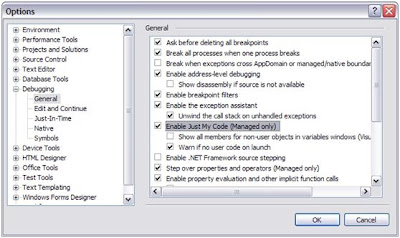
You’ll find an option labeled Enable Just My Code (Managed Only) as shown in the figure which is checked by default. Uncheck this option to be able to debug the assemblies located in the GAC. There is a common myth among .NET developers in general and especially SharePoint ones, that in order to debug assemblies that have been deployed to the GAC, you need to copy the debug symbols (PDB File) to the GAC as well. This was true in the early days of .NET but this is no longer true.

You’ll find an option labeled Enable Just My Code (Managed Only) as shown in the figure which is checked by default. Uncheck this option to be able to debug the assemblies located in the GAC. There is a common myth among .NET developers in general and especially SharePoint ones, that in order to debug assemblies that have been deployed to the GAC, you need to copy the debug symbols (PDB File) to the GAC as well. This was true in the early days of .NET but this is no longer true.
When I try to attach the debugger to the W3WP.exe process to debug, I always see multiple instances of it. Which one should I attach to?
Ok, this is easy too. Just follow the following steps.
Open the command prompt window, run IISAPP to get a list of the current instances of W3WP.exe.
Note the PID of the instance that corresponds to your web application.
Now return to VS, select Debug -> Attach to process and attach to the W3wp.exe instance with an ID equivalent to the PID you got in step 2 -> click Attach.
Now you can trace through the code and find the error causes easily.
But the question still remains, why sometimes are they more than one w3wp.exe instance? This is because the SharePoint Administration Site Collection and the SSP Administration site always have their own Application pools for error isolation purposes.
Open the command prompt window, run IISAPP to get a list of the current instances of W3WP.exe.
Note the PID of the instance that corresponds to your web application.
Now return to VS, select Debug -> Attach to process and attach to the W3wp.exe instance with an ID equivalent to the PID you got in step 2 -> click Attach.
Now you can trace through the code and find the error causes easily.
But the question still remains, why sometimes are they more than one w3wp.exe instance? This is because the SharePoint Administration Site Collection and the SSP Administration site always have their own Application pools for error isolation purposes.
How to get detailed error message in Sharepoint site
SharePoint uses a user friendly (Yellow & Blue) error page to show that a problem occurred. Yeah, they call it the user friendly page, but we, as developers, call it the Annoying Page. The first time I wrote SharePoint code, I received a screen like the one shown in the figure below:
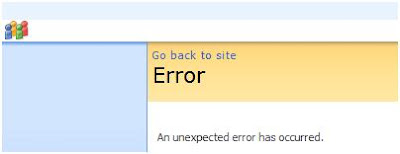
This error page points out that an assembly has thrown an unhandled System.Exception. Sometimes, the user-friendly error page will specify the nature of the error if the code that threw the exception used something more specific than System.Exception or if it included a message in the Exception class constructor.
We need to get a more detailed Error Message than the annoying “Unexpected error has occurred “. This can be achieved by doing three modifications to the Web.Config file from the virtual directory containing your SharePoint application. These modifications are listed in the next table.
Tag
customErrors Mode :Off or Remote only
SafeMode CallStack : True
SafeMode AllowPageLevelTrace: True
No Custom Errors shows the full error to every client, every time. This is typically used Development environment, since there are no clients using it.
I recommend using the Debug Config feature to automate this process. This is just a feature that when you activate on a web application, it automatically tweaks the Web.Config of the specified web application across the farm.

This error page points out that an assembly has thrown an unhandled System.Exception. Sometimes, the user-friendly error page will specify the nature of the error if the code that threw the exception used something more specific than System.Exception or if it included a message in the Exception class constructor.
We need to get a more detailed Error Message than the annoying “Unexpected error has occurred “. This can be achieved by doing three modifications to the Web.Config file from the virtual directory containing your SharePoint application. These modifications are listed in the next table.
Tag
customErrors Mode :Off or Remote only
SafeMode CallStack : True
SafeMode AllowPageLevelTrace: True
No Custom Errors shows the full error to every client, every time. This is typically used Development environment, since there are no clients using it.
I recommend using the Debug Config feature to automate this process. This is just a feature that when you activate on a web application, it automatically tweaks the Web.Config of the specified web application across the farm.
Tuesday, March 17, 2009
.NET NameValueCollection DataTypes
A NameValueCollection is similar to a .NET Hash Table in that it can store items in key/value pairs and allows you to retrieve items by specifying either the Key or index. In fact, NameValueCollections use the hash table and hash table algorithms for their underlying data structures.
Unlike a hash table that can store any type of object as its key or value, NameValueCollections can only store string values. However, a NameValueCollection can store multiple strings values for each key. Because NameValueCollections use the hash table algorithms, they are slower performance wise than hash tables.
A NameValueCollection also has methods to return a collection of all keys, all values, add and remove items and to get an enumerator so you can enumerate through the collection.
Unlike a hash table that can store any type of object as its key or value, NameValueCollections can only store string values. However, a NameValueCollection can store multiple strings values for each key. Because NameValueCollections use the hash table algorithms, they are slower performance wise than hash tables.
A NameValueCollection also has methods to return a collection of all keys, all values, add and remove items and to get an enumerator so you can enumerate through the collection.
Subscribe to:
Posts (Atom)